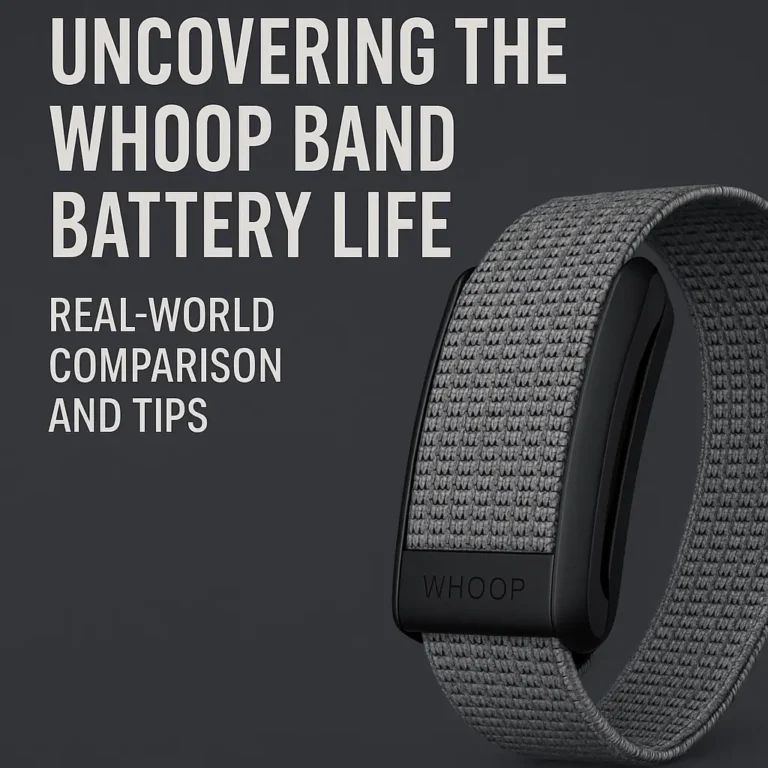
WHOOP Problems in 2025 – Common Issues and Fixes
Even the best wearables have flaws. WHOOP 5.0 and WHOOP MG are among the most advanced recovery trackers in 2025, trusted by athletes and lifestyle users worldwide. But like any device, they aren’t perfect.
From syncing failures to charging frustrations, many WHOOP users report recurring issues. The good news? Most problems are minor, easy to troubleshoot, and rarely require replacing the device.
This article highlights the most common WHOOP problems in 2025 and gives you practical fixes so you can get back to tracking recovery, strain, and sleep without hassle.
WHOOP Connectivity Issues
Problem: The strap doesn’t sync properly with the WHOOP app or loses connection during use.
Fixes:
- Check Bluetooth Settings
- Make sure Bluetooth is turned on.
- Forget and re-pair the WHOOP device if needed.
- Restart Strap & App
- Restart your phone and the WHOOP app.
- Reset WHOOP strap by holding the button for 10–15 seconds (if applicable).
- Stay Close to Device
- Keep strap within a few feet of your phone during syncing.
- Update & Reinstall App
- Update the WHOOP app to the latest version.
- If issues continue, uninstall and reinstall.
Pro Tip: Sync your WHOOP daily to avoid data gaps. Delayed syncing often causes errors.
WHOOP Battery & Charging Issues
Problem: WHOOP strap won’t charge, or the battery drains too quickly.
Fixes:
- Check Battery Pack
- Fully charge the battery pack before sliding it onto the strap.
- If the pack isn’t charging, try another USB-C cable.
- Clean Charging Contacts
- Dirt, sweat, or debris on charging contacts can block current.
- Use a dry microfiber cloth to clean strap and pack connectors.
- Check Strap Fit During Charging
- Ensure the charging pack is seated correctly on the strap.
- Look for the charging light indicator to confirm connection.
- Replace Old Battery Pack
- WHOOP battery packs wear out over time.
- Contact WHOOP support for a replacement if charging issues persist.
Pro Tip: Unlike other wearables, WHOOP lets you charge on the go. This means you should rarely see downtime unless the pack itself is faulty.
WHOOP Strap Comfort & Skin Irritation
Problem: Some users experience red marks, itching, or discomfort from wearing the WHOOP strap 24/7.
Fixes:
- Adjust Tightness
- The strap should be snug but not cutting into the skin.
- If it leaves deep marks, loosen it slightly.
- Try Alternative Bands
- WHOOP offers fabric, Hydroband (sweat-friendly), and bicep straps.
- Switching band types often solves irritation problems.
- Clean the Strap Regularly
- Sweat and dirt buildup can cause skin irritation.
- Hand-wash with mild soap and air dry weekly.
- Rotate Placement
- If irritation persists, switch between wrist and bicep wear.
Pro Tip: For athletes prone to sweating, the Hydroband or ProKnit strap tends to be more comfortable than the standard band.
WHOOP Data Accuracy Concerns
Problem: Users sometimes feel HRV, strain, or sleep readings are off compared to how they actually feel.
Fixes:
- Check Strap Fit
- The sensor must sit snugly against the skin, not loose.
- Reposition higher on the wrist or switch to bicep wear for stability.
- Allow Adaptation Period
- WHOOP uses baseline trends. It often takes 2–4 weeks to calibrate to your body.
- Focus on Trends, Not Single Days
- WHOOP data is most valuable over weeks and months.
- One “off” night of data doesn’t mean the sensor is broken.
- Update Firmware
- Keep firmware updated for sensor accuracy improvements.
Pro Tip: WHOOP prioritizes consistency over spot-checks. Think of it as a trend-tracking system, not a medical-grade one-time reading.
WHOOP Membership & App Issues
Problem: Login errors, billing confusion, or premium features not showing.
Fixes:
- Update the App
- Many app-related bugs disappear after updating.
- Re-Login or Reset Account
- Logging out and back in often resolves syncing or feature issues.
- Check Billing Details
- Make sure your membership is active.
- WHOOP bills monthly or annually — missed payments can disable premium access.
- Contact WHOOP Support
- If billing errors or locked features persist, WHOOP’s customer service is responsive in 2025.
Pro Tip: Annual plans often reduce the monthly membership cost by 20–30%. If billing is a headache, switching to yearly may help.
WHOOP Not Updating or Crashing
Problem: WHOOP firmware or app updates fail, or the app keeps crashing.
Fixes:
- Check Wi-Fi and Internet Stability
- Updates require a strong Wi-Fi connection.
- Switch networks if downloads stall.
- Keep Strap Charging During Updates
- Updates may not start if the battery is too low.
- Ensure the charging pack is attached.
- Restart Device and App
- Close the WHOOP app completely and reopen.
- Restart your phone to clear background conflicts.
- Reinstall App if Necessary
- Delete and reinstall the WHOOP app if crashes persist.
Pro Tip: Updates are frequent in 2025 because WHOOP pushes continuous feature upgrades. Keeping the app updated ensures accuracy and stability.
When to Contact WHOOP Support
You should reach out to WHOOP’s customer service if:
- Hardware fails (strap won’t charge, battery pack doesn’t work, or strap won’t power on).
- Persistent syncing issues remain after troubleshooting.
- App or account problems continue despite reinstallation and updates.
- Warranty claims are needed — straps, charging packs, and sensors are typically covered.
WHOOP support in 2025 is generally responsive, offering both chat and email help.
Final Verdict – WHOOP Problems in 2025
Like any wearable, WHOOP comes with its share of issues. The most common complaints include connectivity glitches, charging troubles, strap comfort, and data accuracy doubts.
The good news? Nearly all of these problems are minor and fixable at home with basic troubleshooting. For hardware or subscription concerns, WHOOP support has proven reliable.
Verdict: WHOOP problems are real, but they don’t outweigh the value of the device. If recovery, sleep, and training optimization matter to you, WHOOP is still one of the best wearables in 2025.
FAQ – WHOOP Problems
1. Why isn’t my WHOOP syncing?
Check Bluetooth, restart the app, and re-pair the device. Keep strap close to your phone.
2. How long should a WHOOP battery pack last?
Typically 12–18 months. WHOOP support replaces faulty packs under warranty.
3. What do I do if WHOOP sleep data looks wrong?
Ensure proper strap fit and give the device 2–4 weeks to calibrate trends.
4. Can WHOOP straps cause skin irritation?
Yes, for some users. Adjust fit, switch bands, and clean the strap regularly.
5. Is WHOOP support reliable in 2025?
Yes. Most users report quick solutions for hardware replacements and billing issues.
Fix Your WHOOP or Upgrade to the Latest Model
If you’re struggling with WHOOP issues, troubleshooting usually solves the problem. But if you’re on an older strap, upgrading to WHOOP 5.0 or WHOOP MG can resolve many hardware and battery concerns.
Check the latest WHOOP 5.0 and MG bundles here:
https://join.whoop.com/DISCOUNT_OFFER/